
ViGEmBus: classic virtual controller setup
ViGEmBus is the virtual gamepad bus used by classic DS4Windows.
On this page
When it is required
Use it for the Ryochan7 virtual-gamepad path. Nexus uses VIIPER and USBIP instead. The ViGEmBus project is archived, so use its published project release and account for its maintenance status rather than assuming a new driver version is coming.
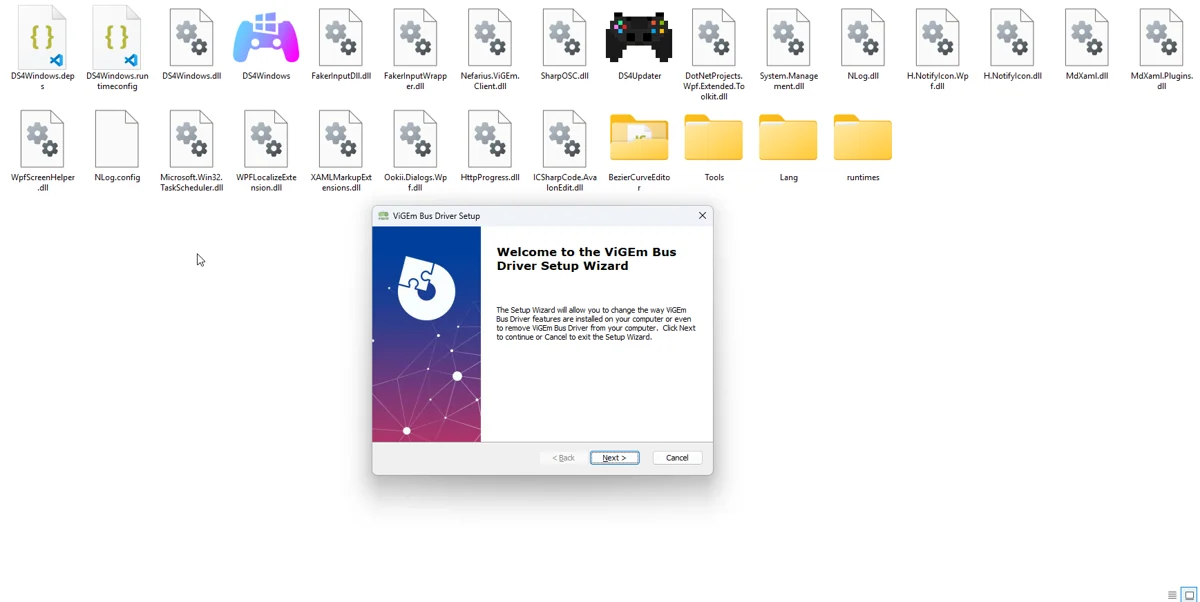
Install and verify
- Download the installer from the Nefarius ViGEmBus release page.
- Close remapping apps, run the installer and review the publisher prompt.
- Restart if requested.
- Start the classic build and check the Log tab for the backend connection.
- Choose a profile with Xbox 360 output and verify a virtual device in joy.cpl.
Controller detected but no output
Physical input and virtual output are independent. If DS4Windows shows your pad but cannot create its virtual device, inspect the backend error and active profile before troubleshooting Bluetooth. Confirm that output is enabled and that another remapper has not taken the device.
Installation problems
If setup reports an existing version, check Installed apps instead of stacking installers. Save the full error and use the project troubleshooting documentation. Avoid random repackaged driver downloads. Cleanup should target an identified conflicting driver, not every HID device in Device Manager.
Removing it
Close apps that use the bus and uninstall through Windows Installed apps if it is no longer required. Other controller tools can share this dependency. Removing the portable DS4Windows folder does not uninstall ViGEmBus.
Related guides
Sources: ViGEmBus releases · Project and screenshot credits. Updated 11 November 2026.