
DS4Windows and Steam Input conflicts
Steam Input and DS4Windows can each translate controller input.
On this page
First check
For a DS4Windows-managed game, start its intended virtual output first. In the Steam game’s Properties > Controller settings, test disabling the overlapping Steam Input path for that game. Do not change unrelated working games unnecessarily.
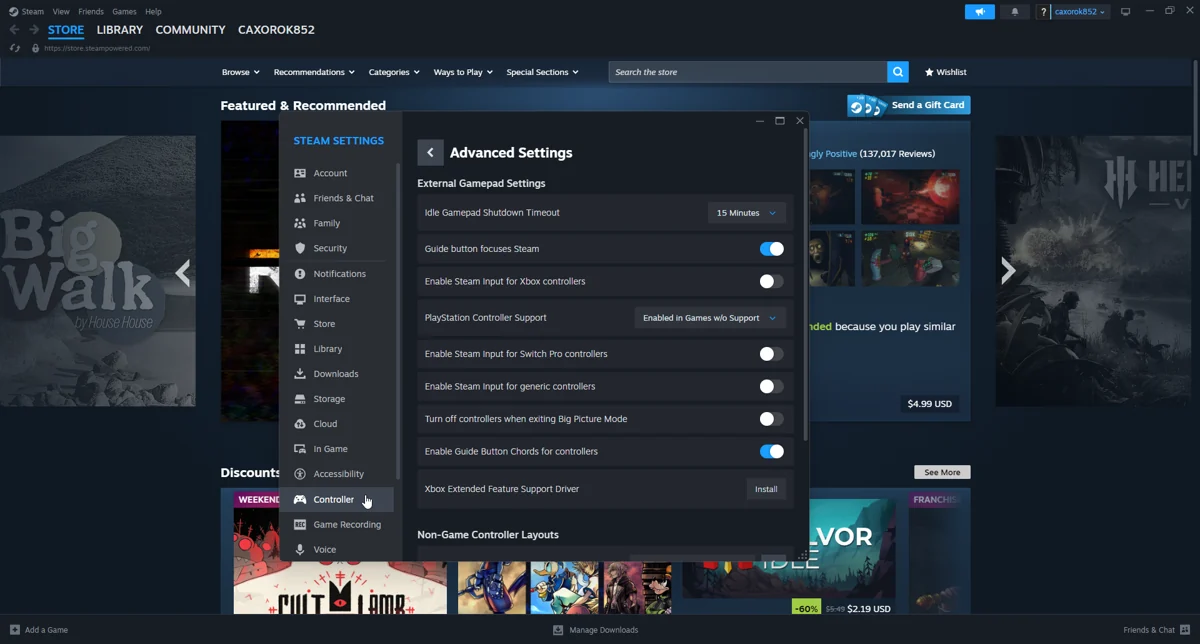
Apply the targeted fix
For a Steam Input-managed or native-input game, close DS4Windows for the test and ensure HidHide does not hide the physical controller from the application that needs it. Hiding rules can remain active after the remapper closes.
If the symptom continues
If prompts switch between keyboard, Xbox and PlayStation, inspect profiles for mouse/key mappings and competing controller layers. The game normally chooses prompts based on the input type it receives, not solely on the physical controller brand.
What to avoid
When one game works and another fails, compare their controller-support requirements and per-game overrides. Keep a documented baseline. Running both tools intentionally can be possible, but it requires a clear input path rather than two independent mappings fighting for the same device.
Useful details for support
Record the app edition and version, controller model, connection type, active profile and the relevant log error. Say whether Windows sees physical input and whether the virtual device responds. These details identify the failing layer much better than a screenshot saying only that no controller is connected.
Related guides
Sources: Nexus release documentation · Project and screenshot credits. Updated 11 November 2026.