
DS4Windows macros and special actions
Macros play a recorded or configured sequence of inputs.
On this page
Set it up
Create a separate test profile. Open the action assignment or macro editor and record a short sequence. Include both key-down and key-up events where appropriate, then review the sequence before assigning it to a control.
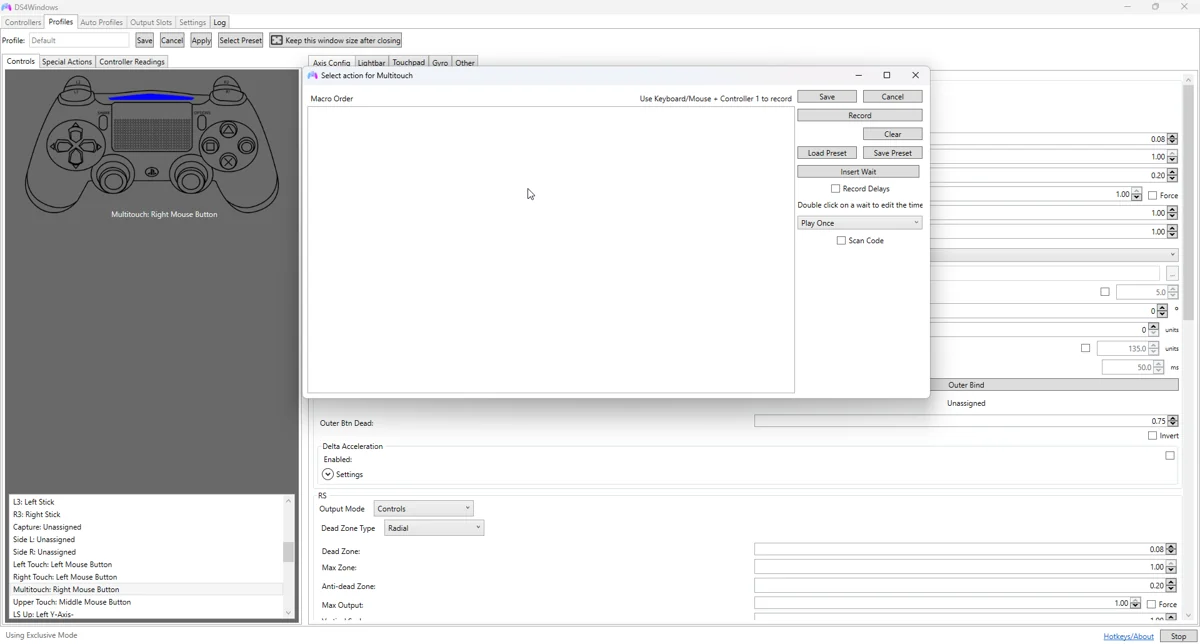
Apply and test
Choose a deliberate activation behaviour supported by the build: run once, hold or toggle. Test in a harmless text editor or menu first. A toggle that is forgotten can make a key appear stuck after the physical button is released.
Fine-tune the behaviour
Adjust pauses according to the target application rather than choosing an arbitrary very fast sequence. If a macro works on the desktop but not in a game, investigate the game’s input handling, permission level and input rules.
Common pitfalls
Keep a way to stop the macro or switch to a clean profile. Check the game’s rules before using automation, especially in competitive play. There is no universal guarantee that a macro accepted by Windows is allowed by a game.
Verify before keeping the change
- Save a copy of the last working profile.
- Select the changed profile on the controller you are testing.
- Test in Windows, then in the target game or application.
- Compare with the unchanged baseline if behaviour is unexpected.
- Back up the working result and change only one further variable at a time.
Related guides
Sources: Nexus release documentation · Project and screenshot credits. Updated 11 November 2026.