
DualSense Edge on PC
DualSense Edge combines the familiar DualSense controls with rear buttons, onboard profiles and adjustable physical trigger travel.
On this page
Connect and identify the controller
Connect by USB-C or pair with PS + Create. Select the Edge itself in Nexus when several controllers are connected. Onboard mappings can affect the input the app receives, so start with a known onboard profile and record it.
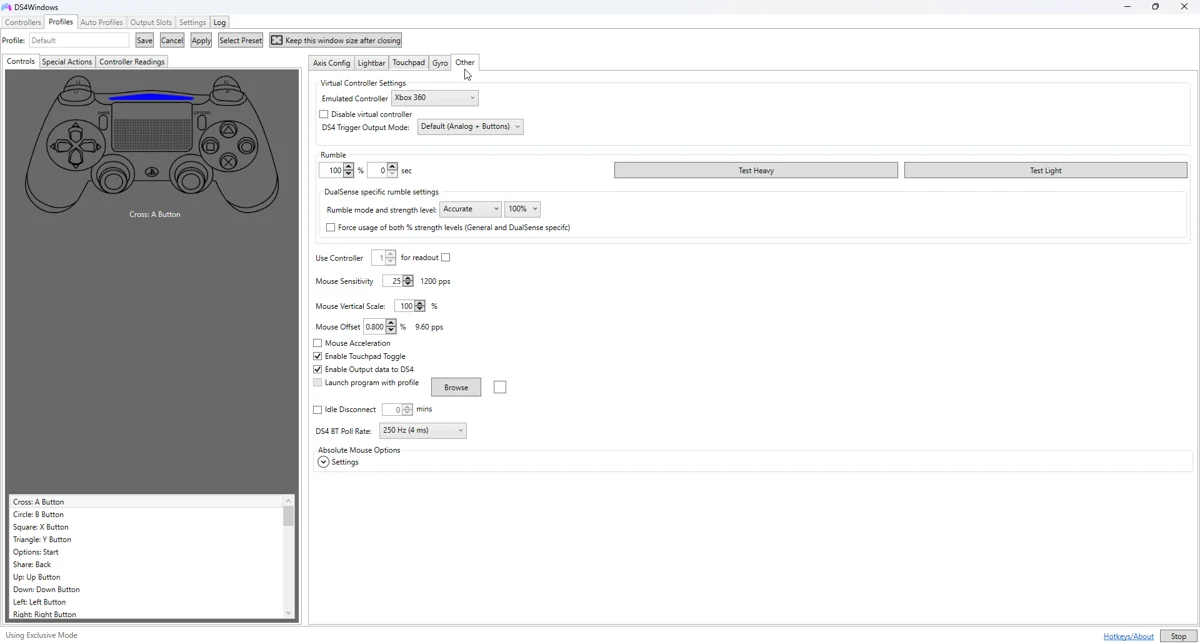
Configure the input and profile
For Trigger Lab resistance, move both rear trigger-stop switches to full travel. Short travel can prevent the expected adaptive mechanism from engaging. A raw trigger value reaching 255 does not establish full physical travel or prove resistance.
Model-specific limits
Nexus can request separate grip haptics, local adaptive effects and lighting. Test one at a time. Extra controls and native Edge virtual output are build-dependent; do not assume every classic build exposes every paddle or Fn control independently.
A repeatable test
- Close competing remappers and select a baseline profile.
- Check that buttons and sticks respond in DS4Windows before opening a game.
- Confirm the intended virtual controller in Windows.
- Test the game, then change one setting at a time.
- Repeat on USB and Bluetooth separately when both are supported; they can have different HidHide entries.
If it is not working
If Windows cannot see the device, solve cable, pairing or model-specific driver setup first. If only DS4Windows misses it, check device support and hiding rules. If DS4Windows reads it but a game ignores it, check virtual output and Steam Input before changing the physical connection.
Related guides
Sources: Nexus release documentation · Project and screenshot credits. Updated 11 November 2026.