
How to connect a PS4 controller to a Windows PC
You can connect a DualShock 4 over a micro-USB data cable, ordinary Bluetooth or Sony’s dedicated DualShock 4 wireless adapter.
On this page
USB connection
- Connect the controller directly to the PC with a known data-capable cable.
- Wait for Windows to detect it. Open joy.cpl if you need to confirm button input.
- If it only charges, try another cable and port before changing app settings.
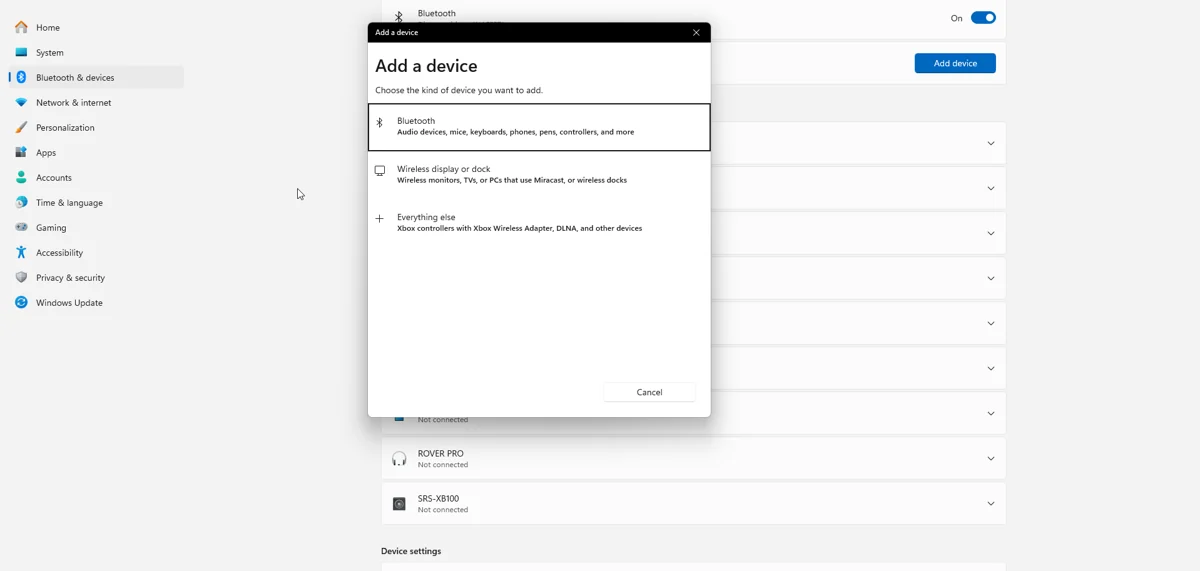
Bluetooth pairing
- Disconnect USB and switch the controller off.
- Hold PS + Share until the light flashes rapidly.
- Open Windows Bluetooth settings, add a Bluetooth device and choose Wireless Controller.
- After pairing, open DS4Windows and select the controller profile.
Choose a game input path
Some games accept the physical DualShock 4 directly. Others work through Steam Input. DS4Windows can provide virtual Xbox 360 or supported PlayStation output when you want consistent remapping. Use one mapping layer during the first test.
Sony wireless adapter
The Sony adapter is a dedicated DS4 accessory, not a generic Bluetooth adapter or a DualSense receiver. It can provide DS4 audio support through its supported connection. Follow its pairing procedure and remember that it handles one controller at a time.
Troubleshooting
If the controller returns to a console instead of the PC, pair it to Windows again. If two devices respond in a game, configure HidHide for the physical pad. If a game shows Xbox prompts with Xbox output, that is expected and is not evidence of a pairing fault.
Related guides
Sources: Nexus release documentation · Project and screenshot credits. Updated 11 November 2026.