
Use the controller touchpad as a mouse
DualShock 4 and DualSense touchpads can be assigned pointer, click or gesture actions in supported profiles.
On this page
Set it up
Open a profile copy and choose its touchpad mode. For desktop use, start with ordinary mouse mode. Map the physical click deliberately and test left/right click or region actions individually.
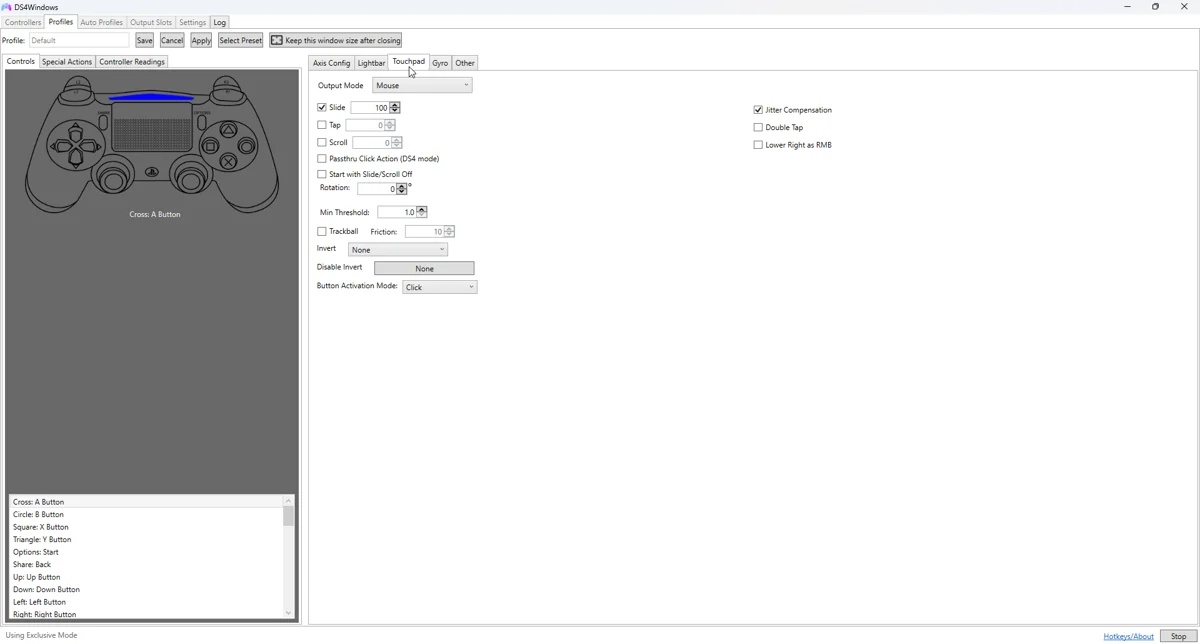
Apply and test
Move a finger across the surface and verify pointer motion in Windows before opening a game. Adjust sensitivity and scrolling gradually. If touching the pad triggers an unwanted key, check any gesture, swipe or touch-region mappings.
Fine-tune the behaviour
For a game that supports native touchpad functions, choose an appropriate passthrough or controller-oriented mode if the build offers it. A virtual Xbox output has no native PlayStation touchpad, so equivalent behaviour must be mapped to another input.
Common pitfalls
If the pointer moves twice or clicks behave unpredictably, close competing remappers and Steam touchpad desktop bindings during the test. Confirm the intended profile is active. For unsupported controllers, verify that the app actually receives touch data.
Verify before keeping the change
- Save a copy of the last working profile.
- Select the changed profile on the controller you are testing.
- Test in Windows, then in the target game or application.
- Compare with the unchanged baseline if behaviour is unexpected.
- Back up the working result and change only one further variable at a time.
Related guides
Sources: Nexus release documentation · Project and screenshot credits. Updated 11 November 2026.