
Lightbar colour and controller battery
Lighting can identify profiles or controllers and show battery-related states.
On this page
Set it up
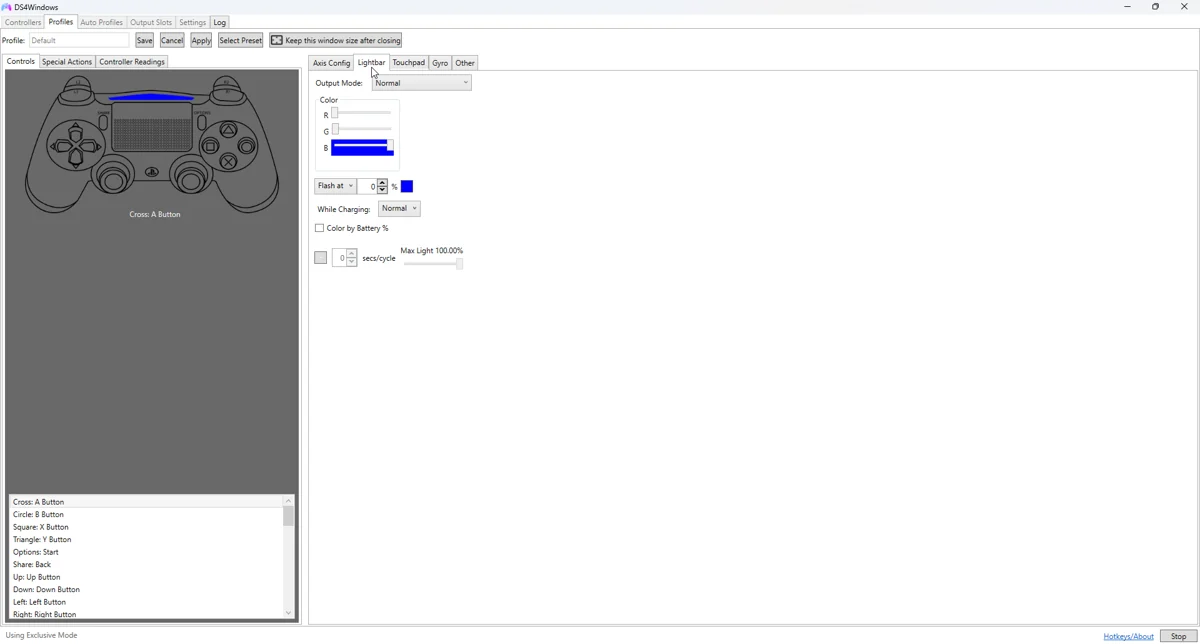
Select the physical controller and edit the active profile’s lightbar settings. Pick a clear static colour for the first test, save it and confirm it appears on the correct controller. Remove temporary custom-colour overrides if the profile appears ignored.
Apply and test
Review battery-based colours, flashing, charging behaviour and brightness separately. A battery indicator changing colour is not necessarily a failed static-colour write; it may be another enabled lighting rule.
Fine-tune the behaviour
For several controllers, assign distinct profile colours and verify both USB and Bluetooth. Nexus can show the requested lightbar owner in diagnostics, but a submitted output report alone does not prove that the hardware displayed the requested colour.
Common pitfalls
Battery percentages are controller reports, often in coarse steps, rather than laboratory measurements. Use USB charging and a known cable to check a low-battery disconnect. Reducing lighting brightness can reduce lighting power use, but there is no single guaranteed battery-life gain.
Verify before keeping the change
- Save a copy of the last working profile.
- Select the changed profile on the controller you are testing.
- Test in Windows, then in the target game or application.
- Compare with the unchanged baseline if behaviour is unexpected.
- Back up the working result and change only one further variable at a time.
Related guides
Sources: Nexus release documentation · Project and screenshot credits. Updated 11 November 2026.