
Create, edit and import DS4Windows profiles
A profile is a saved set of mappings and controller behaviour.
On this page
Set it up
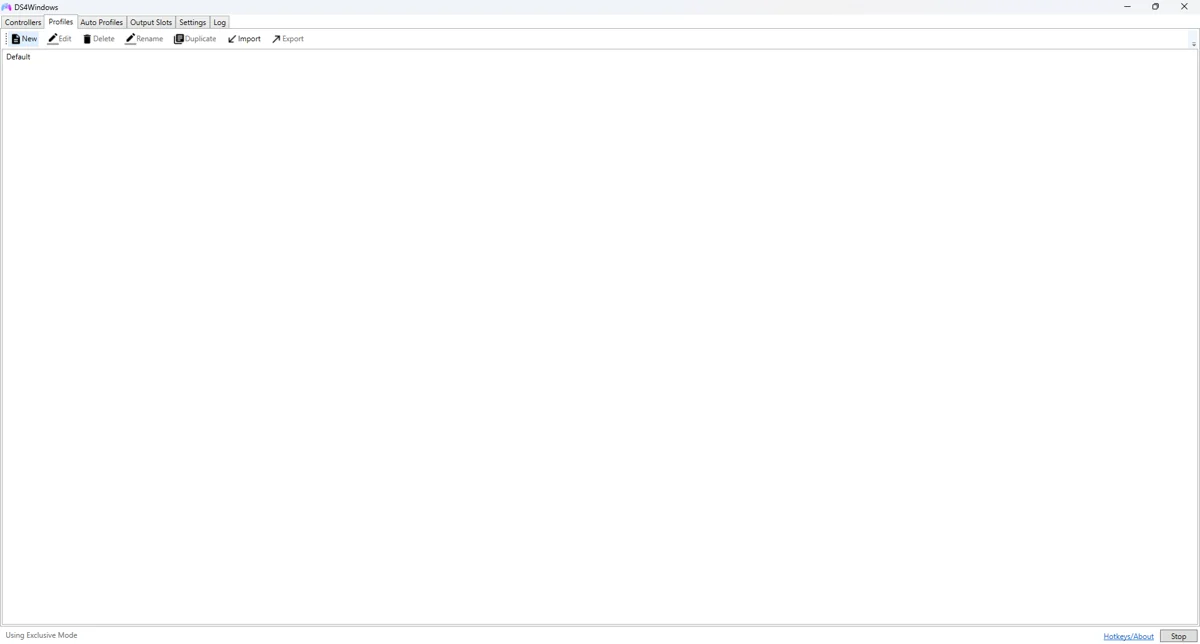
Open Profiles and create a new profile, or duplicate an existing working one. Give it a name that identifies its purpose, such as Racing — Xbox output. Select a simple preset if offered, then save before assigning it to the physical controller.
Apply and test
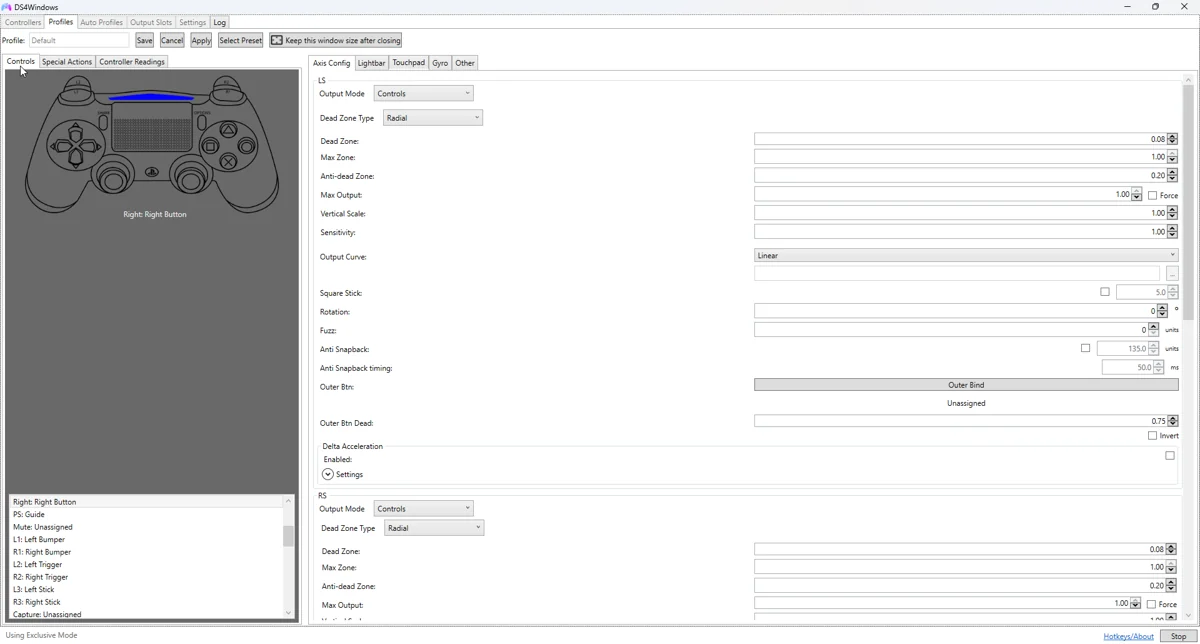
Open the profile editor, select an input control and assign the output action. Save the profile and confirm that the controller row or Nexus sidebar shows that profile as active. Editing a profile does not help if the connected controller is still using a different one.
Fine-tune the behaviour
Check the output-controller type, then test one remap in a game or tester. If a game still reads the original button, it may be seeing the physical controller. Check HidHide and Steam Input before rebuilding the profile.
Common pitfalls
Export a profile through the app where supported, or back up its XML file after closing the app. Profiles from different forks can contain unsupported fields. Import a copy and review every mapping instead of assuming full cross-edition compatibility.
Verify before keeping the change
- Save a copy of the last working profile.
- Select the changed profile on the controller you are testing.
- Test in Windows, then in the target game or application.
- Compare with the unchanged baseline if behaviour is unexpected.
- Back up the working result and change only one further variable at a time.
Related guides
Sources: Nexus release documentation · Project and screenshot credits. Updated 11 November 2026.