
Fix stick drift and unwanted movement
A character moving with untouched sticks can be caused by hardware centre variation, unsuitable deadzone settings, a calibration offset or another active mapping.
On this page
First check
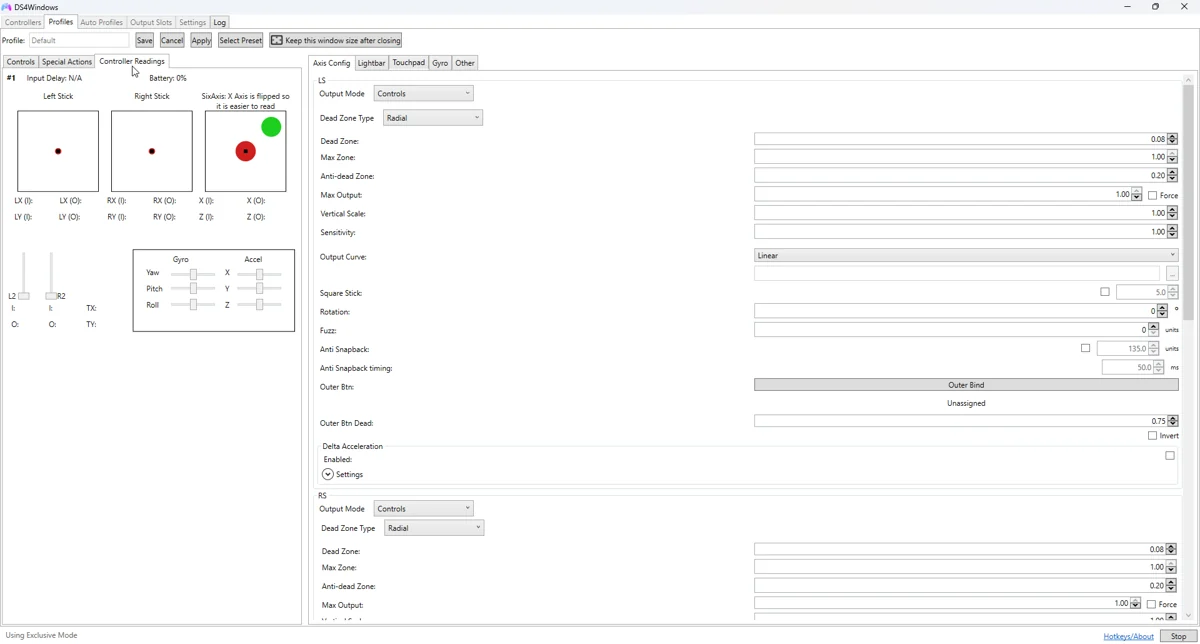
Put the controller on a stable surface and open Controller Readings. Release both sticks repeatedly and note the resting range. Check each stick separately and compare USB with Bluetooth only after establishing a consistent baseline.
Apply the targeted fix
Reset experimental output curves, anti-deadzone and sensitivity in a profile copy. Apply a deadzone just above the measured centre variation, then test slow movement. A large anti-deadzone can make a tiny recognised input jump immediately.
If the symptom continues
Compare more than one application. If the drift appears only in one game, inspect that game’s settings and overlapping Steam profile. Gyro-to-stick or mouse bindings can create camera movement unrelated to physical stick wear.
What to avoid
Software compensation does not repair a worn stick module. If the required deadzone becomes excessive, full travel is missing or calibration cannot hold, consider model-appropriate hardware service. Edge stick modules and physical trigger stops require their own checks.
Useful details for support
Record the app edition and version, controller model, connection type, active profile and the relevant log error. Say whether Windows sees physical input and whether the virtual device responds. These details identify the failing layer much better than a screenshot saying only that no controller is connected.
Related guides
Sources: Nexus release documentation · Project and screenshot credits. Updated 11 November 2026.