
Output slots and virtual controllers
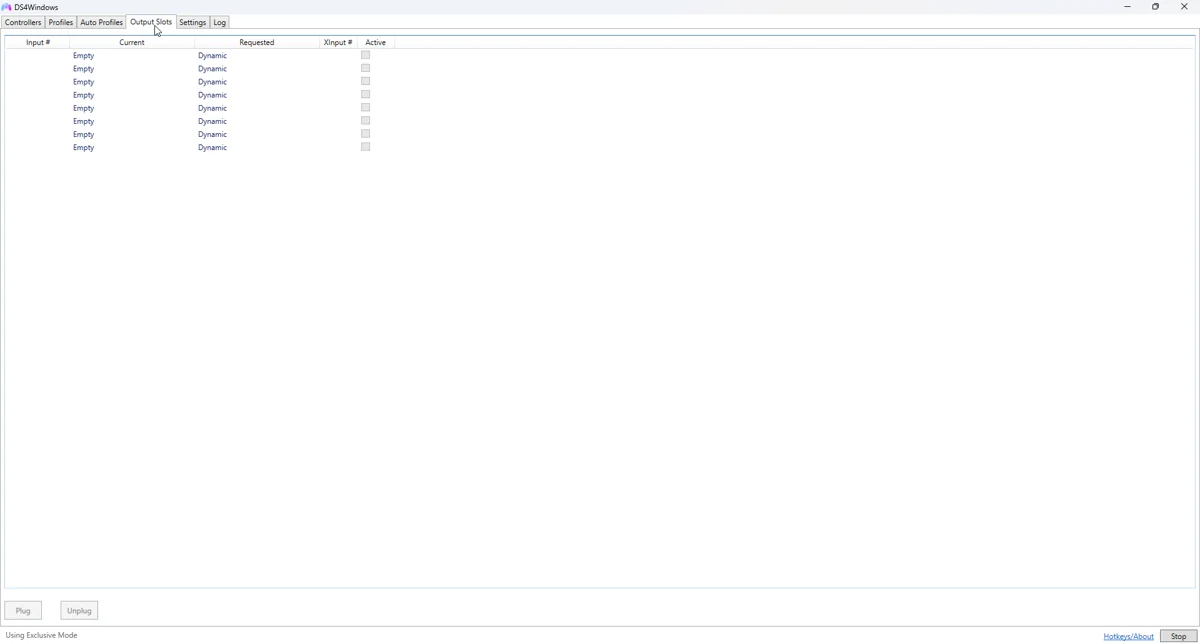
Output slots describe controllers presented to Windows and games.
On this page
Set it up
Start with a dynamic slot and a basic profile. Ryochan7 uses ViGEmBus for classic Xbox 360 or DualShock 4 output. Nexus uses its VIIPER backend and offers additional release-supported output identities.
Apply and test
Select a compatible output type in the profile, reconnect or apply changes as the build requires, and check the slot becomes connected or bound. Open joy.cpl and test buttons to verify the device exists outside DS4Windows.
Fine-tune the behaviour
A permanent or reserved slot can preserve a virtual device when no physical input is bound. That can help games which enumerate controllers only at startup, but can also leave an apparently idle pad visible. Use permanent slots only when you need that behaviour.
Common pitfalls
If the game chooses the wrong player, close it, disconnect extra controllers and start with one intended output. An app slot number, XInput player index and browser index are different namespaces; do not assume their numbers must match.
Verify before keeping the change
- Save a copy of the last working profile.
- Select the changed profile on the controller you are testing.
- Test in Windows, then in the target game or application.
- Compare with the unchanged baseline if behaviour is unexpected.
- Back up the working result and change only one further variable at a time.
Related guides
Sources: Nexus release documentation · Project and screenshot credits. Updated 11 November 2026.