
Fix double input and duplicate controller actions
Double input can look like two menu steps per press, an unwanted second player or a game applying both the original and remapped button.
On this page
First check
Start with one controller and one remapping application. Open a tester and identify the physical and virtual devices. A remapped keyboard key plus virtual controller action can also generate duplicate actions even if only one gamepad is visible.
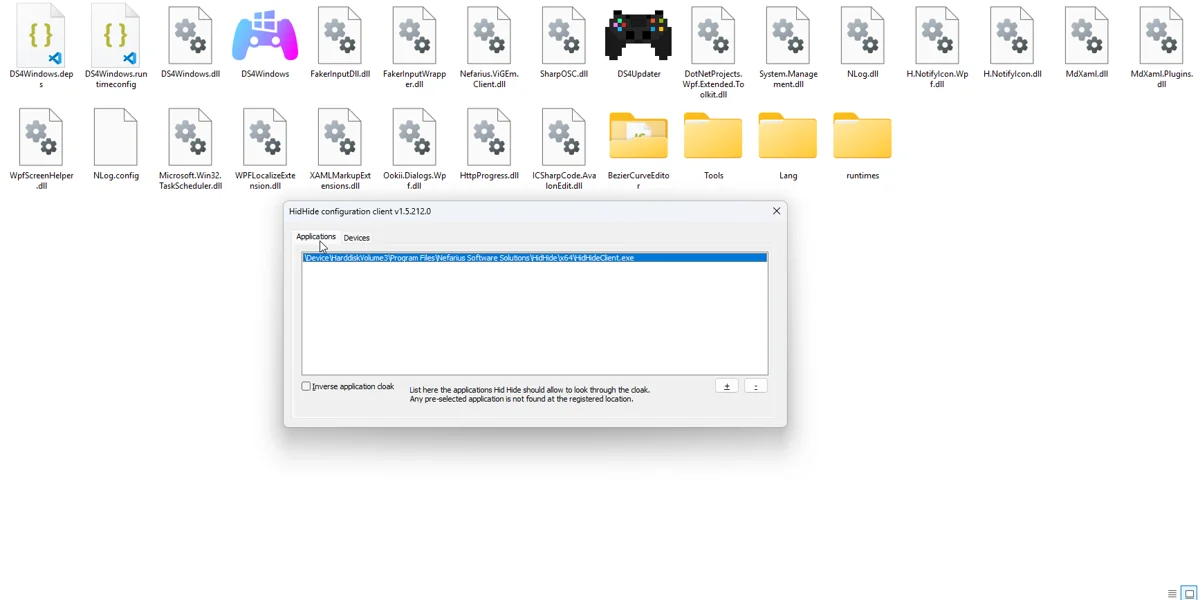
Apply the targeted fix
Use HidHide if the game must see only virtual output. Add the actual DS4Windows.exe to Applications, mark the physical pad under Devices and enable device hiding. Leave inverse cloak off for the usual configuration.
If the symptom continues
Reconnect after setting the rules. USB and Bluetooth can have separate entries. Keep the virtual device visible and ensure DS4Windows still receives physical input. In classic builds, avoid combining HidHide with the older exclusive Hide DS4 Controller method while diagnosing.
What to avoid
If duplication remains, disable overlapping per-game Steam Input or a second remapper for the test. Check the profile for a button assigned both to a key and a controller output. Restore the baseline to distinguish hardware button bounce from mapping duplication.
Useful details for support
Record the app edition and version, controller model, connection type, active profile and the relevant log error. Say whether Windows sees physical input and whether the virtual device responds. These details identify the failing layer much better than a screenshot saying only that no controller is connected.
Related guides
Sources: Nexus release documentation · Project and screenshot credits. Updated 11 November 2026.