
DS4Windows not detecting your controller
Detection fails at different layers: Windows may not see the device, the app may not support its identity, or hiding rules may block the remapper itself.
On this page
First check
Use a known data-capable USB cable and a direct port. Confirm Windows detects input in joy.cpl or a suitable tester. A charging LED alone is not enough. For Bluetooth, confirm live connection rather than just a saved paired entry.
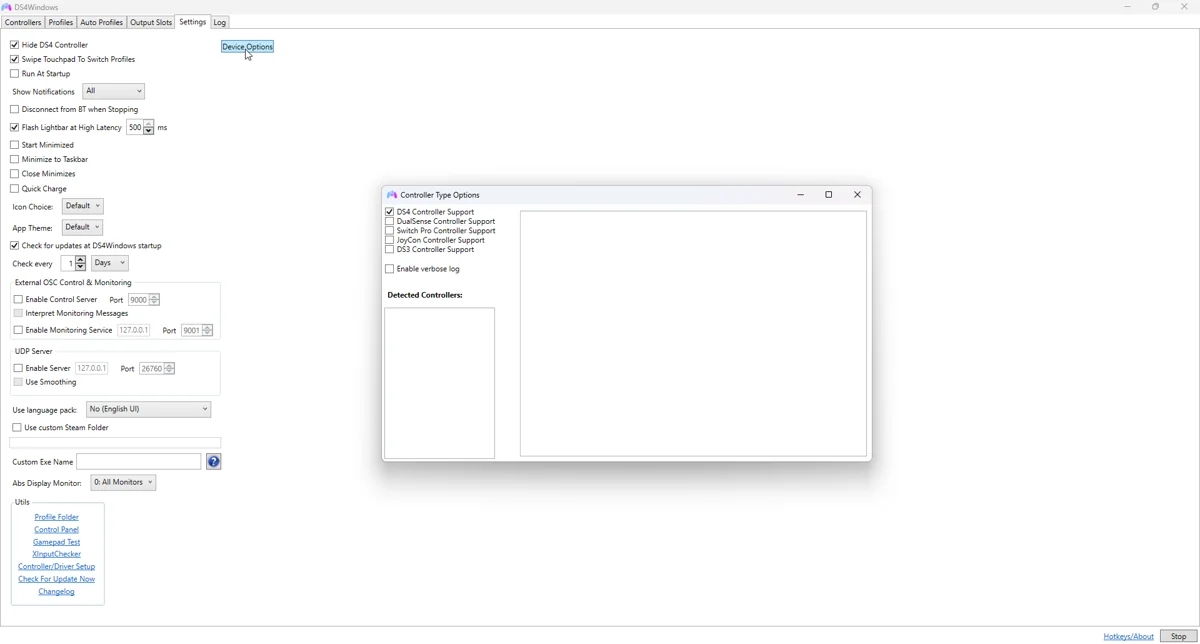
Apply the targeted fix
Check controller-family support in Settings > Device Options on classic builds, or the equivalent controller setup in Nexus. Enable the family you actually use, then reconnect. Third-party devices need exact model support.
If the symptom continues
Temporarily disable HidHide device hiding and reconnect. If detection returns, add the correct DS4Windows.exe path to its Applications allowlist and select only the intended physical device. Moving the app can leave a stale allowlist path.
What to avoid
Close competing remappers and test a baseline configuration. DualShock 3 additionally needs its documented DsHidMini path. If Windows itself never sees a device, changing an output profile or installing ViGEmBus cannot repair a charge-only cable.
Useful details for support
Record the app edition and version, controller model, connection type, active profile and the relevant log error. Say whether Windows sees physical input and whether the virtual device responds. These details identify the failing layer much better than a screenshot saying only that no controller is connected.
Related guides
Sources: Nexus release documentation · Project and screenshot credits. Updated 11 November 2026.