
How to connect a PS5 controller to a Windows PC
DualSense and DualSense Edge can connect through USB-C or Bluetooth.
On this page
Connect over USB
- Use a USB-C cable that carries data, connected directly to the PC.
- Check Windows detection and button input.
- Open DS4Windows, enable the controller family if required and choose a basic profile.
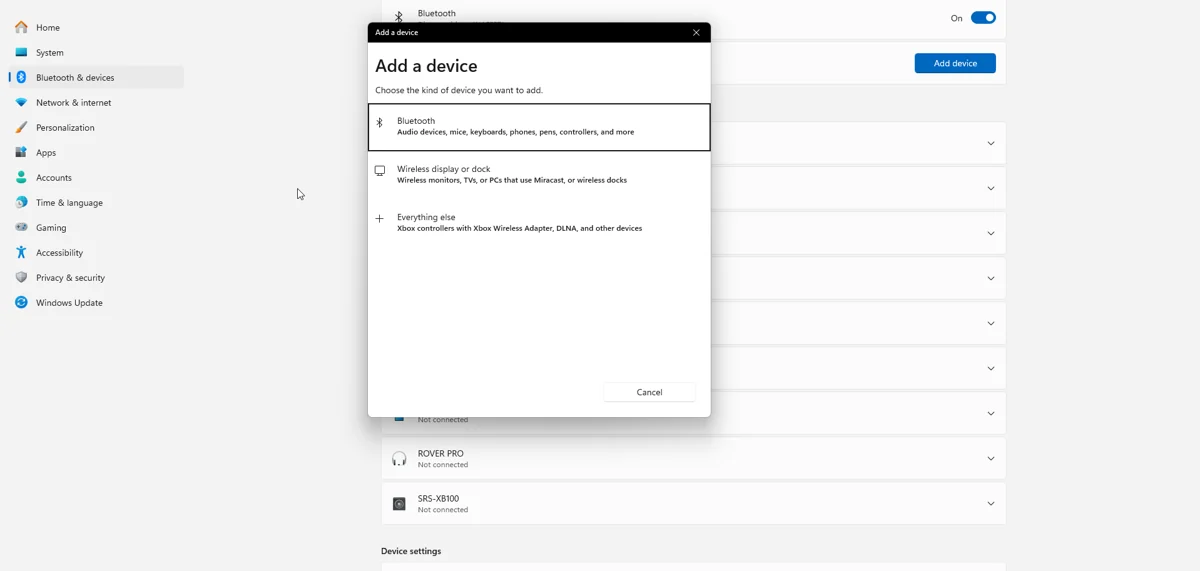
Pair over Bluetooth
- Disconnect the cable and switch the controller off.
- Hold PS + Create until the lights flash.
- Choose Add device > Bluetooth in Windows and select the controller.
- Verify input in DS4Windows before starting the game.
Native game support versus emulation
If a game supports DualSense natively, follow its requirements for connection and Steam Input. An Xbox output profile improves compatibility with XInput games but does not preserve every native PlayStation feature. Nexus local feedback is a separate path.
Audio, haptics and triggers
Grip vibration from captured audio is not the controller speaker. In Nexus, test Audio Haptics and speaker streaming separately. Trigger Lab effects are locally requested. Edge users should select full trigger travel on the physical rear switches before testing resistance.
When it works in one application only
Check whether Steam Input provides the working path. Then compare the game’s expected controller type with the active DS4Windows output. Avoid changing cable, profile and backend simultaneously; use the baseline profile to isolate the difference.
Related guides
Sources: Nexus release documentation · Project and screenshot credits. Updated 11 November 2026.