
Controller input lag and Bluetooth dropouts
Perceived delay includes controller transport, remapping, game processing, frame rate and display latency.
On this page
First check
Compare a direct wired connection with Bluetooth using the same game, profile and display settings. Change one variable at a time. If both feel delayed, inspect the game frame rate, VSync, display mode and render queue before changing radio settings.
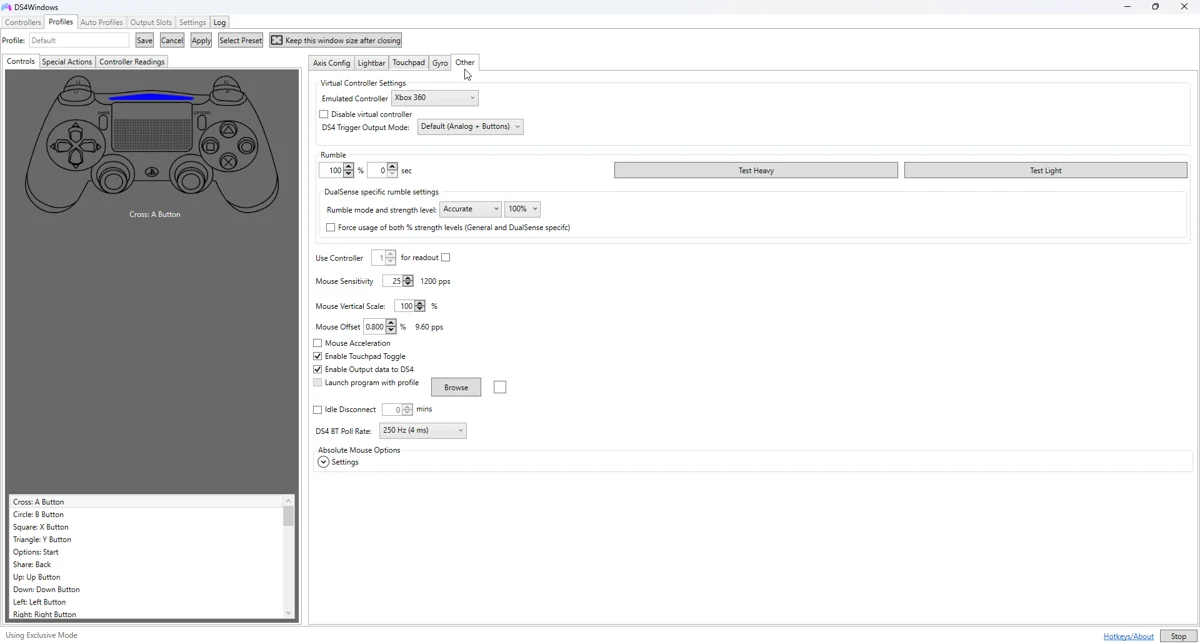
Apply the targeted fix
For wireless tests, charge the pad, move close to the adapter and test one controller. Place the adapter away from crowded USB cabling or other interference. Use the adapter maker’s supported Windows drivers.
If the symptom continues
If a classic build exposes Bluetooth report-rate settings, test supported values conservatively and watch for disconnects or increased variation. A higher number is not automatically better for every adapter or group of controllers.
What to avoid
Avoid stacking undocumented USB overclock tools, registry tweaks or security changes as a generic cure. Save baseline measurements and a reproducible test. An intermittent cable can also feel like a software stall; check Windows disconnect sounds and the app log.
Useful details for support
Record the app edition and version, controller model, connection type, active profile and the relevant log error. Say whether Windows sees physical input and whether the virtual device responds. These details identify the failing layer much better than a screenshot saying only that no controller is connected.
Related guides
Sources: Nexus release documentation · Project and screenshot credits. Updated 11 November 2026.