
Nintendo Switch Pro controller on PC
Switch Pro offers sticks, digital shoulder triggers and motion controls.
On this page
Connect and identify the controller
Connect with a USB-C data cable or hold the controller sync button and add it in Windows Bluetooth settings. Enable Switch Pro support in your DS4Windows edition if necessary. Close other Nintendo remappers during the initial test.
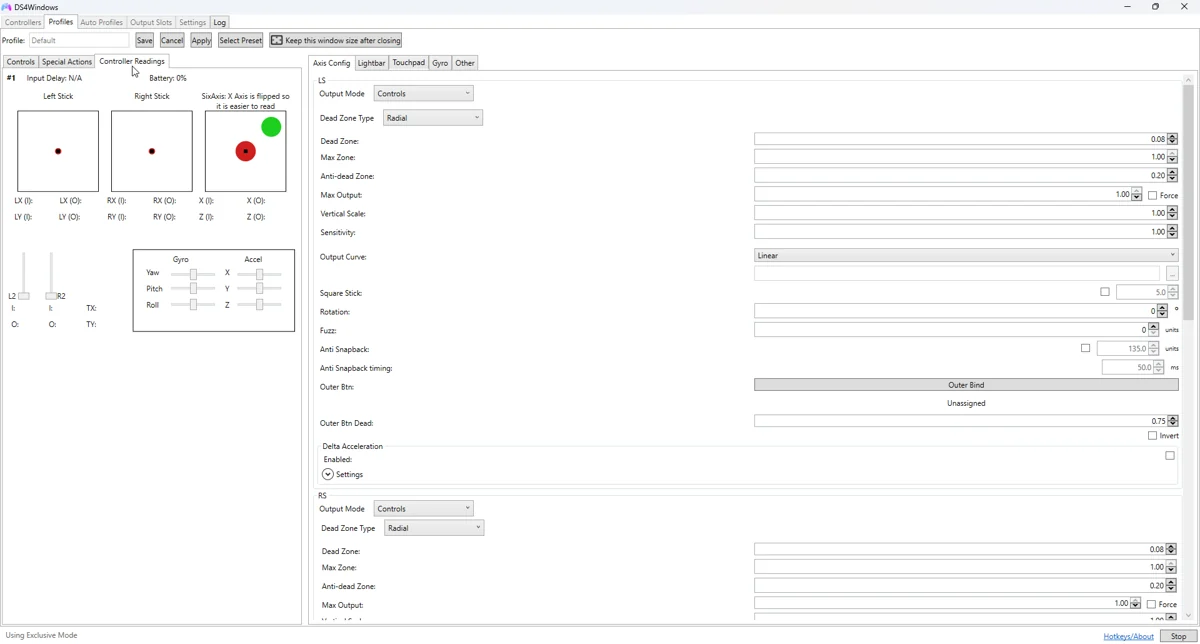
Configure the input and profile
Create a basic gamepad profile and verify each button. Check gyro separately before binding it to a mouse or stick. Measure stick centres in Controller Readings instead of copying a calibration value from another controller.
Model-specific limits
ZL and ZR are digital switches. An emulated Xbox trigger can report pressed/released states, but it cannot recover analogue finger travel the hardware never measured. Nintendo-specific HD rumble and NFC features are not guaranteed by ordinary gamepad mapping.
A repeatable test
- Close competing remappers and select a baseline profile.
- Check that buttons and sticks respond in DS4Windows before opening a game.
- Confirm the intended virtual controller in Windows.
- Test the game, then change one setting at a time.
- Repeat on USB and Bluetooth separately when both are supported; they can have different HidHide entries.
If it is not working
If Windows cannot see the device, solve cable, pairing or model-specific driver setup first. If only DS4Windows misses it, check device support and hiding rules. If DS4Windows reads it but a game ignores it, check virtual output and Steam Input before changing the physical connection.
Related guides
Sources: Nexus release documentation · Project and screenshot credits. Updated 11 November 2026.