Fix incorrect buttons and in-game controller behaviour
If the controller is detected and a virtual device responds, focus on the active profile and the game’s interpretation.
On this page
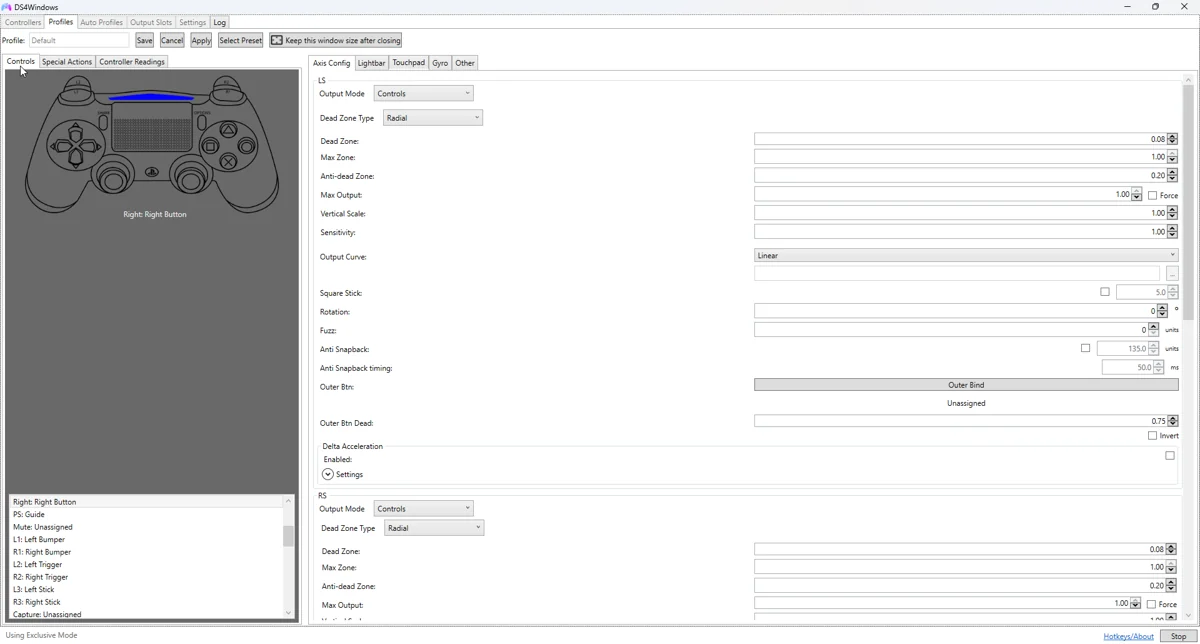
Check the active profile
Confirm the selected physical controller is using the profile you edited. Test a fresh baseline. Nintendo button labels, PlayStation labels and Xbox physical positions differ, so decide which convention your mappings should follow.
Check the output type
Use Xbox 360 output for a basic XInput compatibility test. Native PlayStation features require a game and output path that support them. A virtual Xbox controller generally produces Xbox prompts even when the pad in your hands is a DualSense.
Eliminate duplicate paths
Check HidHide, Steam Input and profiles sending both keys and controller buttons. If two menu moves occur per press, follow the double-input guide rather than increasing a stick deadzone.
Verify sticks and triggers
Inspect raw input in Controller Readings and review axis inversion, output curves and trigger mappings. On DualSense Edge, physical rear trigger stops affect mechanical travel and local resistance tests.
Test one game at a time
- Close the game, start the intended output and reopen it.
- Disconnect extra controllers or reserved idle outputs.
- Reset the game controller bindings if necessary.
- Compare the same profile in another game.
- Save a working per-game profile once the difference is understood.
Related guides
Sources: Nexus release documentation · Project and screenshot credits. Updated 11 November 2026.