Fix keyboard and mouse remapping issues
When a mapped key works in Windows but not in a target application, the issue may be the application input path, permissions or game restrictions rather than controller detection.
On this page
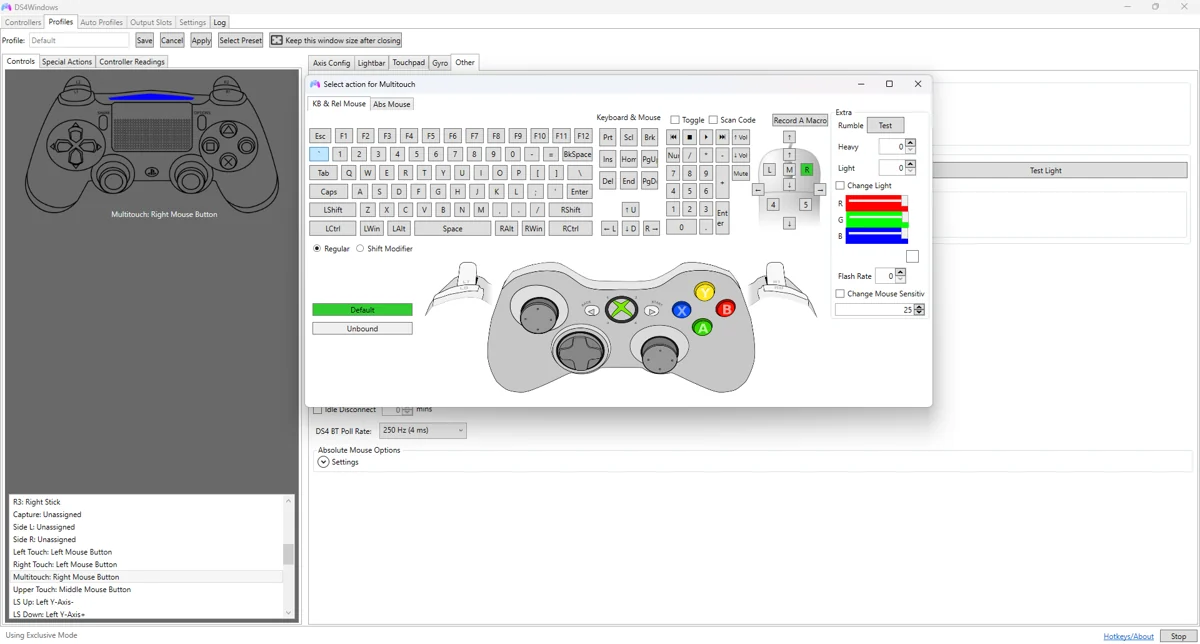
Test a single binding
- Duplicate the working profile.
- Map one button to an ordinary key, with an appropriate release event.
- Open a normal text editor and check one press produces one action.
- Test the target app with the same profile before adding macros.
Check duplicate outputs
A profile can send a key while also producing the virtual controller button. If the game accepts both, one press can trigger two actions. Remove the redundant binding or choose a dedicated keyboard/mouse profile.
Review privileges and input methods
Avoid running everything as administrator by default. Check whether the target app runs elevated and whether your edition supports an alternative input method such as FakerInput. Acceptance of virtual keyboard input is not universal.
Pointer and toggle problems
Check touchpad/stick mouse sensitivity, modifier layers and toggle bindings. Reset to the baseline if keys appear stuck. A macro should include the correct release events and a predictable stop behaviour.
Respect application rules
A technical workaround does not establish that a game permits automated input. Consult game policies before enabling repeats or macros. If ordinary mapping is blocked intentionally, use a supported input path.
Related guides
Sources: Nexus release documentation · Project and screenshot credits. Updated 11 November 2026.