
Map a controller to keyboard and mouse
Keyboard/mouse profiles help with applications that do not accept a gamepad.
On this page
Set it up
Create a profile copy and assign one button to an ordinary key. Test in a text editor with a matching key-up event. For mouse movement, start with one stick or the touchpad and a modest sensitivity.
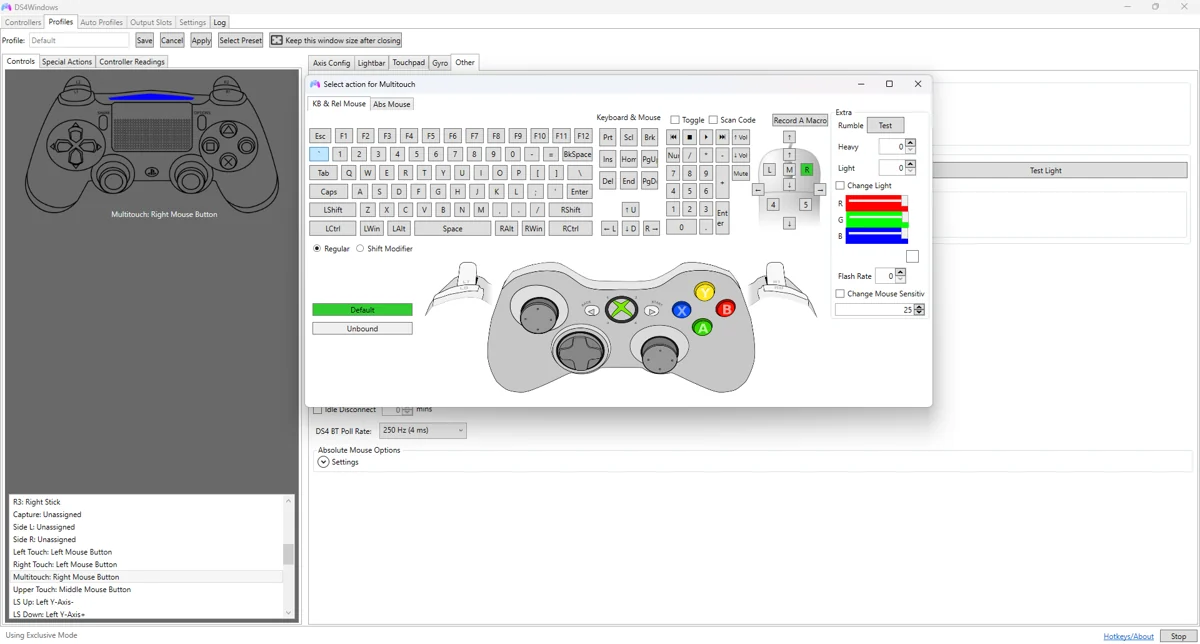
Apply and test
Choose whether the profile should also produce a virtual gamepad. If the game receives both a mapped key and the original virtual controller input, it can perform two actions. Remove the redundant mapping rather than compensating with more macros.
Fine-tune the behaviour
Use shift/modifier layers only after basic mappings work. Label the activation button and test what happens when it is released. Toggle bindings need an obvious reset path so they do not leave controls apparently held.
Common pitfalls
If mappings fail only in an elevated app or one protected game, check input permissions and the game’s supported methods. FakerInput may provide an alternative in compatible builds; it does not guarantee that an anti-cheat-protected game will accept or permit the mapping.
Verify before keeping the change
- Save a copy of the last working profile.
- Select the changed profile on the controller you are testing.
- Test in Windows, then in the target game or application.
- Compare with the unchanged baseline if behaviour is unexpected.
- Back up the working result and change only one further variable at a time.
Related guides
Sources: Nexus release documentation · Project and screenshot credits. Updated 11 November 2026.