
Legacy controller driver cleanup
Old controller software can leave drivers or hiding rules behind.
On this page
Check before changing anything
List the controller tools installed on the PC and note whether the failure affects Windows detection, DS4Windows input or virtual output. A hidden physical device is different from a missing virtual-controller bus.
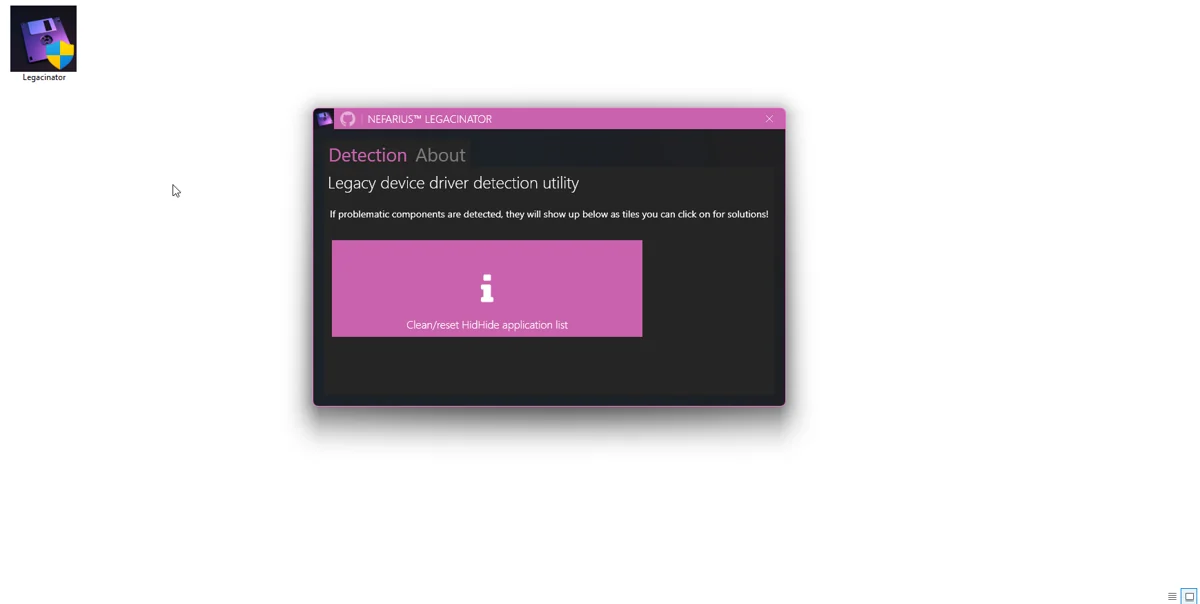
Use supported cleanup tools
Nefarius Legacinator can help identify supported legacy components. Read each finding and its proposed action. A clean scan is useful information; it does not mean every part of your input configuration is correct.
A careful cleanup sequence
- Close games and remapping applications. Back up profiles.
- Disable obsolete hiding rules through their configuration tool, where available.
- Uninstall the identified old package using Windows Installed apps or the project’s documented tool.
- Restart Windows and reconnect the controller.
- Install only the backend required by the chosen DS4Windows build, then test a basic profile.
Components to investigate
ScpToolkit/ScpVBus and HidGuardian appear in many old tutorials. They may have changed how a Bluetooth adapter or physical controller is exposed. Do not remove a shared dependency while another installed application still needs it.
Do not manually erase driver files
Deleting files from system driver folders or indiscriminately removing HID devices can create additional problems. Keep the exact device name and error code for a targeted repair. Check HidHide’s allowlist as well; a stale path after moving the app often needs a rule change rather than driver removal.
Related guides
Sources: Legacinator project · Project and screenshot credits. Updated 11 November 2026.