
Controller audio, microphone and Audio Haptics
Audible controller sound, headset/microphone endpoints and audio-driven grip vibration are separate features.
On this page
First check
If ordinary PC speakers went silent after plugging in a controller, open Windows Sound settings and choose the intended output. Check the per-app volume mixer as well. A newly detected controller endpoint may have become the default.
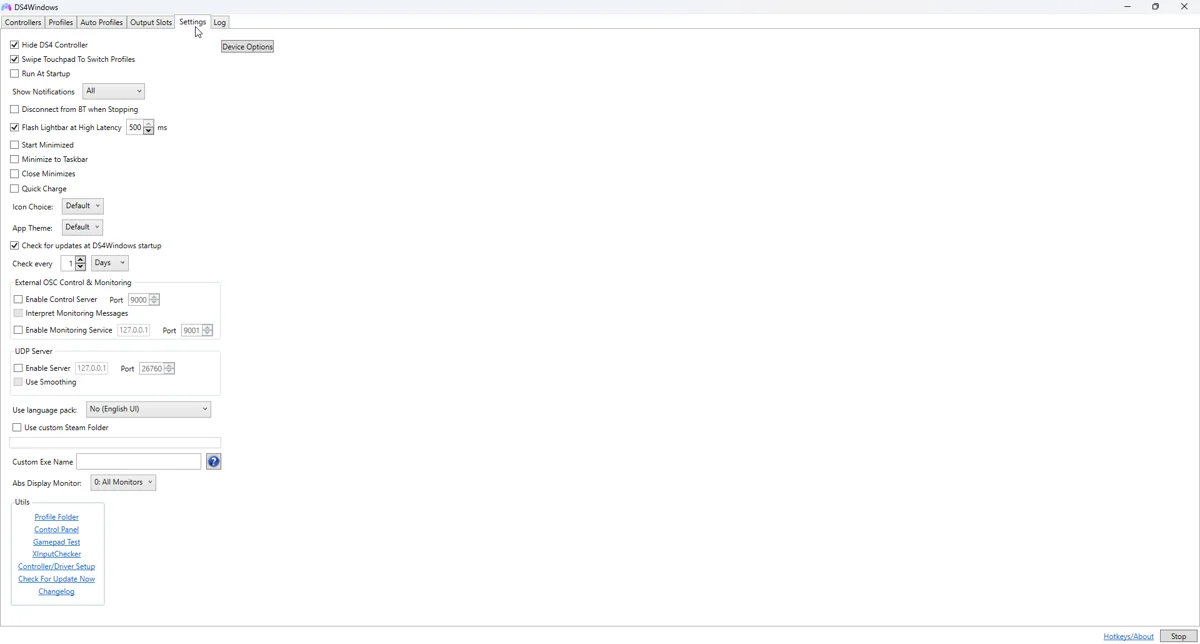
Apply the targeted fix
For Nexus grip feedback, open Audio Haptics and select the source actually playing sound. System audio captures the selected speakers or headphones; an app-specific source needs that process to be running and producing audio. Disable automatic game following while testing ordinary music if it is waiting for a game.
If the symptom continues
For audible Nexus controller-speaker streaming, open Overview > Quick Settings, enable Stream audio to controller, turn Headset only off and raise Controller speaker volume. Choose a source that is actively playing. This source can differ from the source in Audio Haptics.
What to avoid
Classic DS4Windows does not create generic Bluetooth headset audio. Native USB endpoints and Sony DS4 adapter audio have their own support requirements. Nexus v1 local speaker/haptics support does not mean virtual native audio/microphone endpoints or advanced game-trigger passthrough are included.
Useful details for support
Record the app edition and version, controller model, connection type, active profile and the relevant log error. Say whether Windows sees physical input and whether the virtual device responds. These details identify the failing layer much better than a screenshot saying only that no controller is connected.
Related guides
Sources: Nexus release documentation · Project and screenshot credits. Updated 11 November 2026.